
WiFi Ping Tester
Online tech 4Tools
3.81.00 Reviews
- Version
- 1.0.6
- Installs
- 10.00K
- Age Rating
- Everyone
Screenshots
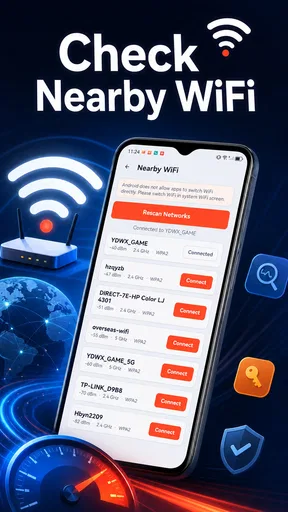
Our Review of WiFi Ping Tester
 Analysis by Appyee
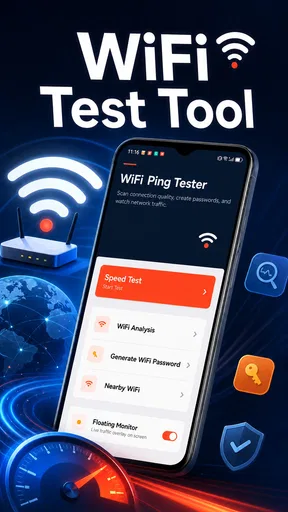
When my connection feels slow, I usually want one simple answer first: is the problem my Wi-Fi, my internet service, or the device I am using? WiFi Ping Tester is built for that first check. It is a free Android tools app from Online tech 4 that focuses on testing network ping speed and examining Wi-Fi signal status. I found its purpose easy to understand, especially when I did not want a large network-management suite filled with settings I would never use.
The app is best viewed as a quick diagnostic companion rather than a complete internet-performance laboratory. It can help put a vague complaint such as “the connection is bad” into more useful terms. That makes it practical for checking a room with weak wireless coverage, investigating a delay during a call or game, or deciding whether moving closer to the router is likely to help. It does not replace every tool built into Android or a full network utility, but its narrow focus is also its main attraction.
How WiFi Ping Tester feels in everyday use
I’d start by treating WiFi Ping Tester as a quick comparison tool, not a verdict on your whole internet connection. In everyday use, I’d check the same spot more than once and pair the ping result with the Wi-Fi signal status, especially when a problem comes and goes. That gives the next section a practical starting point: how to make your first check answer the right question.
Speed expectations: useful answers without promising miracles
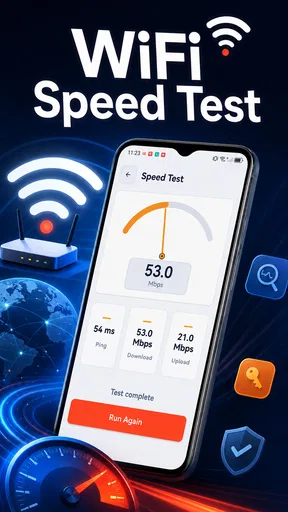
The first thing I would tell a new user is that a ping test is not the same as a download-speed test. Ping is about responsiveness: how quickly a request travels to a destination and returns. That distinction matters. A connection can download large files reasonably well and still feel unpleasant during an online game or voice conversation if its response time is inconsistent.
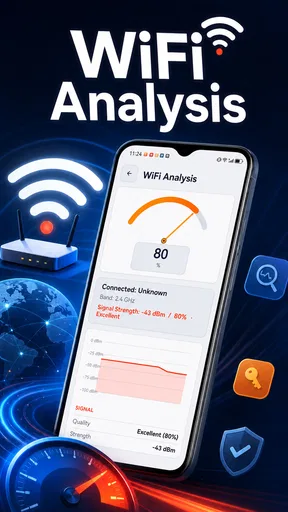
WiFi Ping Tester makes sense when I need to investigate that kind of delay. I can use it before blaming an app, restarting the router, or changing a subscription. If the wireless signal is weak in one part of the home, the signal-status view gives me another piece of context alongside the ping result. Looking at both together is more useful than treating either one as a complete verdict.
For example, a weak signal combined with sluggish responses points me toward distance, walls, interference, or router placement. A strong-looking Wi-Fi connection with poor ping suggests that the wireless link may not be the only issue. The internet service, the remote server, or congestion elsewhere could still be responsible. The important habit is to read the ping and signal information together rather than treating one number as the whole story.
I also appreciate that the app is not trying to turn a simple check into a technical project. Someone who only wants to know whether the bedroom connection is worse than the living-room connection can use it as a before-and-after tool. Check the connection in one place, move the phone, and check again. That comparison is often more meaningful than a single result viewed in isolation.
Heavy-use moments: where a small diagnostic tool earns its place
The most useful scenario for me is troubleshooting a problem while it is actually happening. Suppose a video call starts freezing in the afternoon, an online match becomes unresponsive, or a smart-home device seems slow to react. Running a quick check during the problem can help separate a temporary network issue from a problem inside the individual app.
I would not use the result as courtroom evidence against an internet provider after one test. Network conditions change, and one check only describes one moment. Instead, I would repeat the same check at different times and from the same location. If the result changes sharply while the phone remains in place, that pattern is more informative than a single unusually good or bad reading.
There is also a practical way to use the app during household congestion. If several people are streaming, uploading photos, joining meetings, or downloading large files, a connection may feel less responsive even when the Wi-Fi signal itself has not changed. Checking the signal status during that busy period helps me avoid the common mistake of assuming that a strong wireless signal automatically means a fast internet response.
One limitation becomes clearer here: a ping tester does not explain every cause of poor performance. It can help me observe responsiveness and wireless conditions, but it cannot by itself identify which family member’s device is consuming bandwidth or tell me exactly how a router should be configured. For those jobs, the router’s own administration tools or a broader network analyzer may be a better choice.
Reliability: interpreting repeated checks instead of chasing one result
I judge this app’s reliability less by a single reading and more by how sensibly I can use it over time. The most dependable workflow is consistent: test from the same spot, under similar conditions, and compare several checks rather than relying on memory. That approach turns the app into a basic troubleshooting notebook, even though the app itself is not a full reporting system.
When I test a weak area, I would first check near the router, then in the problem room, and finally in the exact place where the issue appears. This creates a simple reference point. If the nearby result is healthy but the distant one is poor, the wireless path becomes a reasonable suspect. If both locations behave badly, moving the phone may not solve the underlying problem.
Another useful check is to repeat the test after reconnecting to Wi-Fi. Reconnecting can tell me whether the issue was a temporary connection state or a persistent condition. I would still avoid treating reconnection as a cure. If the same behavior returns, the pattern matters more than the quick improvement.
The app’s public reception is modest but not empty: it carries a 3.8 average from around 28 ratings and has more than one review associated with it. I see that as a reason to keep expectations measured. It is enough to show that people have tried it, but not enough to assume that every phone and network will behave identically. My own recommendation is to use it as a convenient indicator, not as the only diagnostic source for an important connection.
Device constraints: what Android users should check first
WiFi Ping Tester is intended for Android and is marked for Everyone, which makes its audience broad. It requires Android 10 or newer, so anyone using an older phone or tablet will need to look elsewhere. That requirement is the most important compatibility check before spending time searching for it.
The current release is version 1.0.6. I would keep the app updated through the normal app-store process, particularly because network behavior can be affected by changes in Android, device firmware, and wireless hardware. I would also remember that results are tied to the phone itself. Two devices standing beside each other can still report different experiences because their antennas, software, or background activity differ.
Resource use is another sensible consideration. This is a focused utility rather than an app I would expect to leave open all day. I would launch it when checking a connection, read the result, and close it when finished. That usage pattern should also reduce confusion caused by unrelated background activity on the phone. If the device is already busy with downloads, updates, or a video call, the test may describe the phone’s current workload as well as the network.
For an older Android device that meets the operating-system requirement, the app’s limited purpose may be preferable to installing a large suite of networking tools. On the other hand, users who need continuous monitoring, detailed logs, router discovery, or advanced diagnostics should choose a more comprehensive utility. The simpler design is helpful for occasional checks, but it naturally leaves out specialist controls.
A realistic home workflow for finding a weak spot
Imagine that my phone works well in the kitchen but becomes unreliable at a desk in another room. I would begin with a test in the kitchen, then repeat it at the desk without changing anything else. I would note the Wi-Fi signal status and ping behavior in both places. If the desk shows a weaker signal and noticeably less responsive results, I would move the phone a few steps at a time and test again.
That small experiment can reveal whether the issue is tied to a particular corner, wall, floor, or piece of furniture. It also helps me decide what action is worth trying. Repositioning the router may be sensible if the difference is clearly location-based. A mesh system or extender might be worth considering for a persistent dead zone, but I would not buy one solely because of one disappointing check.
Next, I would repeat the test when nobody else is using the connection heavily. If the desk improves at a quiet time but struggles during busy periods, coverage may not be the only factor. That distinction can save money: buying extra wireless hardware will not necessarily solve congestion caused by a busy connection or a remote service.
This workflow is more valuable than simply opening the app and asking whether the connection is “good.” It turns the tool into a comparison aid. The app provides the observation; I still have to control the conditions and make the practical decision.
Where it compares well with ordinary alternatives
Android already includes basic Wi-Fi information, and many routers provide their own connection diagnostics. Those built-in options can be enough when I only want to see which network I am connected to or whether the signal icon looks weak. WiFi Ping Tester becomes more useful when I want a dedicated place to check responsiveness alongside the wireless condition.
Internet-service speed-test apps are a different alternative. They are usually better when I want download and upload throughput, while this app’s identity is centered on ping and Wi-Fi signal status. I would use a speed test to investigate streaming, large downloads, or upload complaints, and use this app when delay or local wireless coverage is the main concern.
Advanced network tools are stronger for technical users. They may offer route tracing, device discovery, packet details, or historical monitoring. That depth can be valuable for diagnosing a complicated home network, but it also makes the experience harder for someone who only wants a quick answer. In that comparison, this app’s advantage is focus rather than breadth.
There is a trade-off in choosing a focused tool. I spend less time learning it, but I receive less explanation about what is happening beyond the immediate check. If I need to prove a recurring service problem, document changes across many hours, or inspect several devices, I would move to the router interface or a more advanced analyzer.
Small habits that make the results more useful
I would avoid testing immediately after moving between networks. First, I would confirm that the phone is connected to the intended Wi-Fi, then wait briefly for the connection to settle. Testing the wrong network can produce a perfectly valid result that answers the wrong question.
I would also keep the phone in the same orientation and location when comparing results. This sounds minor, but placing the device behind a laptop, inside a drawer, or next to a large object can change the local wireless conditions. Consistency makes the comparison fairer.
For a connection problem that comes and goes, I would record the time and what the household was doing. A poor reading during a large upload means something different from a poor reading when the network is idle. The app does not need to become a complicated monitoring project; a few carefully chosen checks are often enough to reveal a pattern.
Finally, I would use the app after making one change at a time. Move the router, test. Change location, test. Pause a heavy activity, test. If I alter several things at once, I will not know which action helped. This is a simple but often overlooked advantage of a focused diagnostic app: it encourages quick, repeatable experiments.
Who should install it, and who should skip it
I would recommend WiFi Ping Tester to Android users who want an uncomplicated way to investigate lag, compare Wi-Fi coverage between rooms, or check whether a connection problem is local to one place. It is especially suitable for people who do not need a long list of networking features and would rather have a small tool ready for occasional troubleshooting.
It is also a reasonable first step for a family trying to understand why one room performs worse than another. The app can support a conversation based on observations instead of guesses: the signal is weaker here, the response is worse during busy periods, or the issue remains even near the router.
I would skip it if I need a full internet-speed report, continuous history, detailed router analysis, or professional network diagnostics. I would also skip it if my device runs an Android version below the requirement. In those cases, the usual built-in settings, a provider’s speed-test tool, or a more advanced network application may fit the job better.
Performance verdict: focused, free, and best used as a first check
WiFi Ping Tester does one practical job: it gives me a way to examine ping responsiveness and Wi-Fi signal status without turning a basic check into a technical session. Its speed as a utility comes from that narrow purpose. I can open it when a connection feels wrong, compare locations, repeat a test during busy periods, and use the pattern to decide what to try next.
Its limitations are equally clear. A ping result is not a complete measurement of internet quality, a signal reading does not explain congestion, and one test should not decide whether the router or provider is at fault. The app works best when I treat it as an observation tool and combine it with controlled comparisons.
Online tech 4 has released a free tools app with a broad Everyone age rating and a straightforward role. It has passed the ten-thousand-install mark, which gives it some real-world reach without making it feel like an established all-purpose network platform. For me, that places it in the useful middle ground between Android’s basic Wi-Fi screen and heavyweight diagnostic suites.
My final recommendation is simple: install it if you want a quick way to investigate wireless lag and coverage, but choose a broader tool when you need detailed measurements or long-term monitoring. Used with repeated checks and sensible comparisons, it can turn an everyday Wi-Fi complaint into a clearer next step. That is not a complete network diagnosis, but for a free, focused utility, it is a worthwhile starting point.
Verdict
Strengths of WiFi Ping Tester
- Quickly checks Wi‑Fi latency and connection responsiveness
- Simple interface suitable for users with little technical experience
- Useful for comparing signal quality in different rooms
- Helps identify unstable connections and intermittent packet loss
- Lightweight app with minimal impact on device storage and battery
Limitations of WiFi Ping Tester
- Results can vary depending on network traffic and server distance
- Does not improve Wi‑Fi performance or fix router problems
- Advanced diagnostics may be limited for experienced users
- Some features may require permissions or contain advertising
- Ping tests can consume mobile data if Wi‑Fi disconnects unexpectedly
Similar Picks in This Category
View All
Google LLC4.0

Gboard - the Google Keyboard
Google LLC4.5

Google Play services
Google LLC4.3

Google Play Store
Google LLC4.9

Files by Google
Google LLC4.5

SHAREit: Transfer, Share Files
Smart Media4U Technology Pte.Ltd.4.3
Frequently Asked Questions
What is WiFi Ping Tester used for?
WiFi Ping Tester is designed to check the responsiveness and stability of a Wi-Fi or internet connection. After entering a destination, such as a website or IP address, the app sends ping requests and measures the response time. It can help identify high latency, connection interruptions, packet loss, or differences between nearby networks.
Does WiFi Ping Tester require an internet connection?
The app needs an active network connection to test an online server or website. It can also be useful when connected only to a local Wi-Fi network if you are testing a device or router that is reachable locally. However, without Wi-Fi or mobile data, online ping tests cannot run, so the results depend on the selected destination and current network conditions.
How should I understand the ping results?
Ping results are generally shown in milliseconds, indicating how long data takes to travel to the destination and return. Lower values usually mean a more responsive connection, while higher values may cause delays in games, calls, or remote services. Occasional spikes can indicate congestion, distance, weak signal, or temporary problems with the network.
Can WiFi Ping Tester diagnose all Wi-Fi problems?
WiFi Ping Tester is helpful for measuring latency, response consistency, and possible packet loss, but it is not a complete network diagnostic tool. A poor result may be caused by the router, wireless interference, internet provider, remote server, or the device itself. For accurate troubleshooting, compare several destinations and test at different times.
Is WiFi Ping Tester useful for online gaming and video calls?
Yes, the app can be useful before gaming sessions or video calls because it provides an indication of connection responsiveness. Stable, low ping is normally preferable, although ping alone does not measure download speed, upload speed, or every factor affecting performance. For a more complete assessment, combine the results with a speed test and real-world use.
